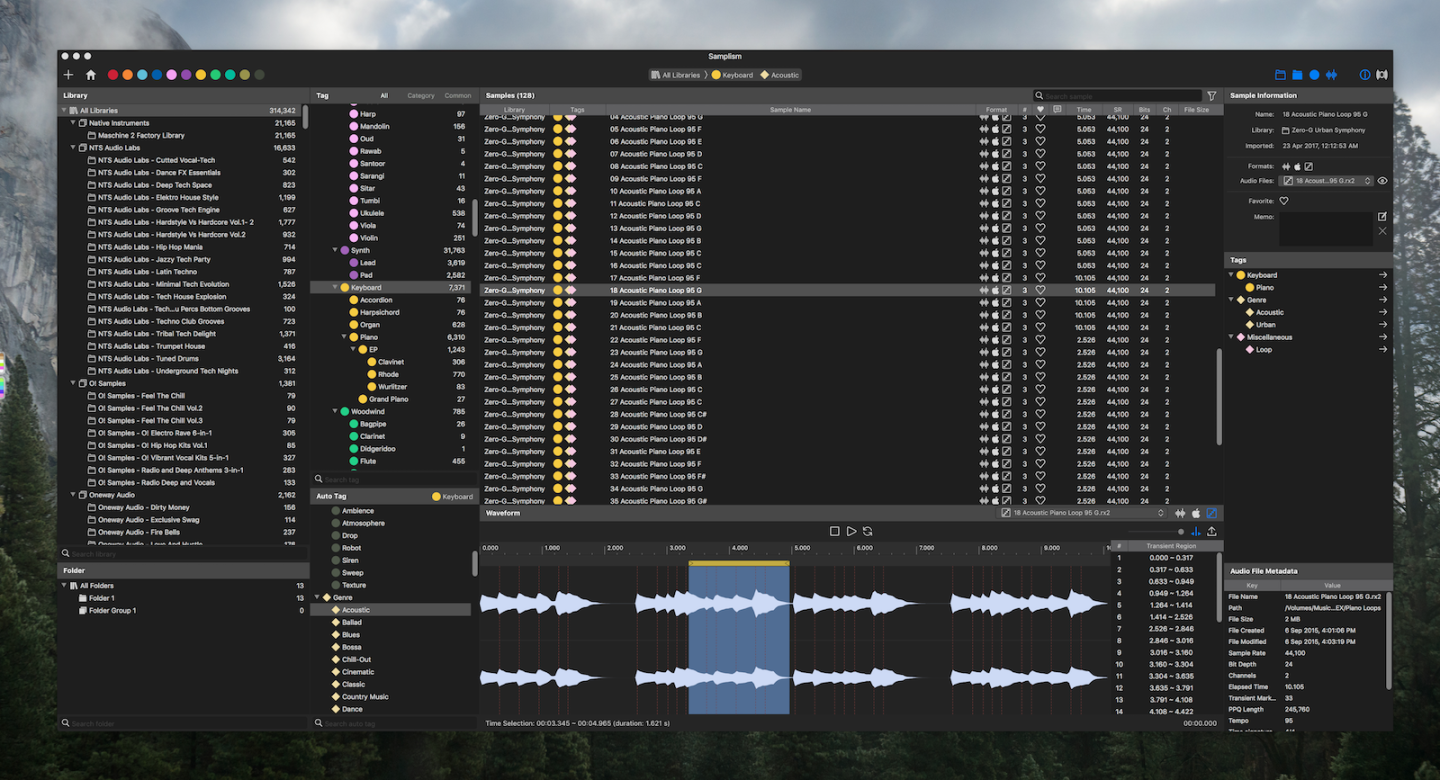

A smarter way to manage your audio samples
Samplism is a revolutionary audio file organizer that helps you quickly organize, preview and search for your audio samples.
What’s New in Samplism 1.9.3?
Introducing the Floating Waveform view
BGM: “WoW!” by Lovelyz (https://youtu.be/a1ENnG-s630)
Video Demo
BGM: Instrumental version of “Ah-Choo” by Lovelyz (Produced by Yoonsang)
(https://www.youtube.com/watch?v=wf1Ngv060KI)
(Original song: https://www.youtube.com/watch?v=v7qisJ_KuYI)
Purchase Samplism (v1.9.10)

Demo version : Click to download
Get Samplism Lite For Free (v1.3.10)
Features Comparison
| Samplism Lite | Samplism | |
| Price | Free | $59.99 |
| Maximum allowed number of samples | 50,000 | Unlimited |
| Library Support | O | O |
| Folder Support | X | O |
| Automatic Tag Matching | O | O |
| Manual tagging | X | O |
| Supporting macOS tags | X | O |
| Variable playback tempo & pitch | Playback only | * Playback * Export |
| Drag and drop support | Sample only | * Sample * Waveform selection * Transient region |
| Import third-party library | * Apple Loops * Ableton Live | * Logic Pro X * Apple Loops * Ableton Live * Splice * Loopcloud * Native Instruments * AKAI MPC |
| Export | X | O |
| Files View support | X | O |
| Audio Unit support | X | O |
Key Features
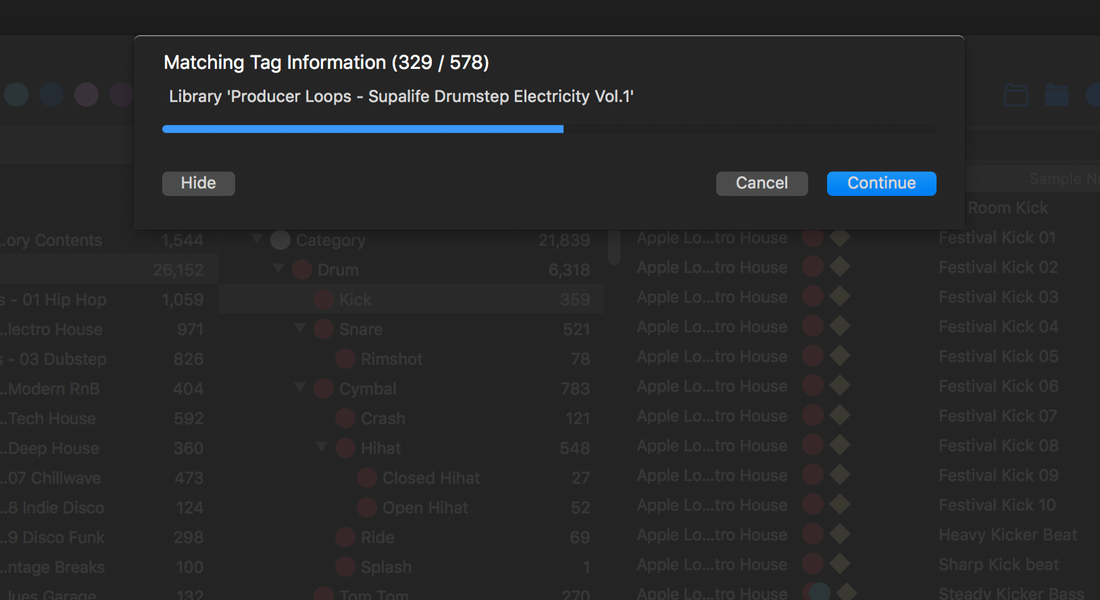
1. Automatic Tag Matching
Samplism features a breakthrough technology that automatically categorizes audio samples into tags. With Samplism, you don’t need to waste your time anymore on manually categorizing your audio files. Just drag and drop directories on your Mac into Samplism. All audio samples are automatically categorized into tags. It’s practically a magic.
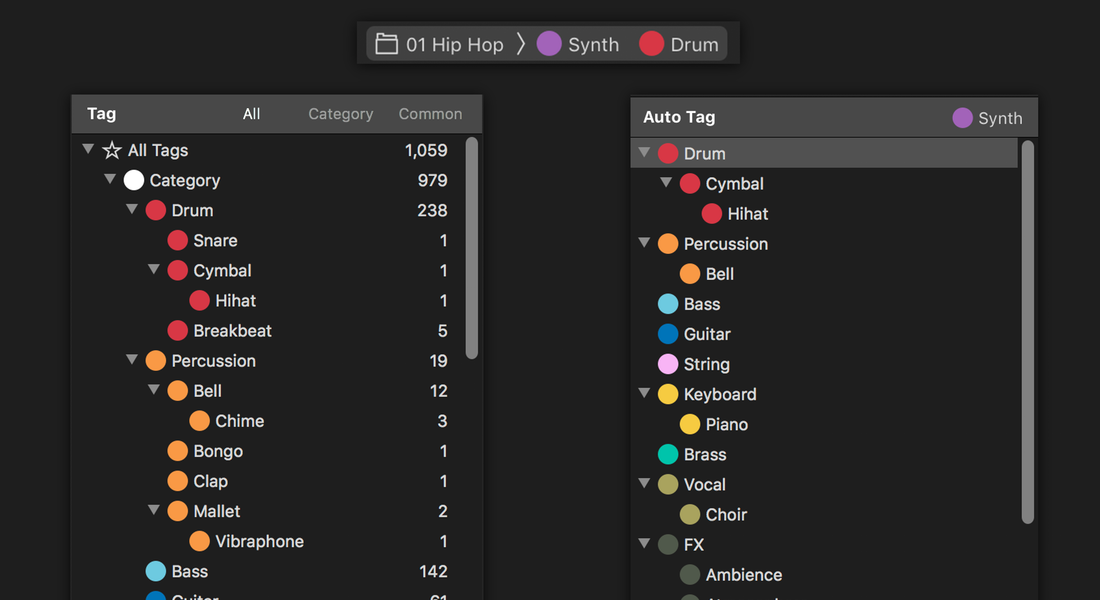
2. Search for Audio Samples using Tags and Auto Tags
Samplism provides a simple, quick and easy way to search for audio samples using tags and auto tags. By simply selecting a tag, all its corresponding samples will be shown in the Sample List. In addition, auto tags allow you to search for samples with more specific criteria.
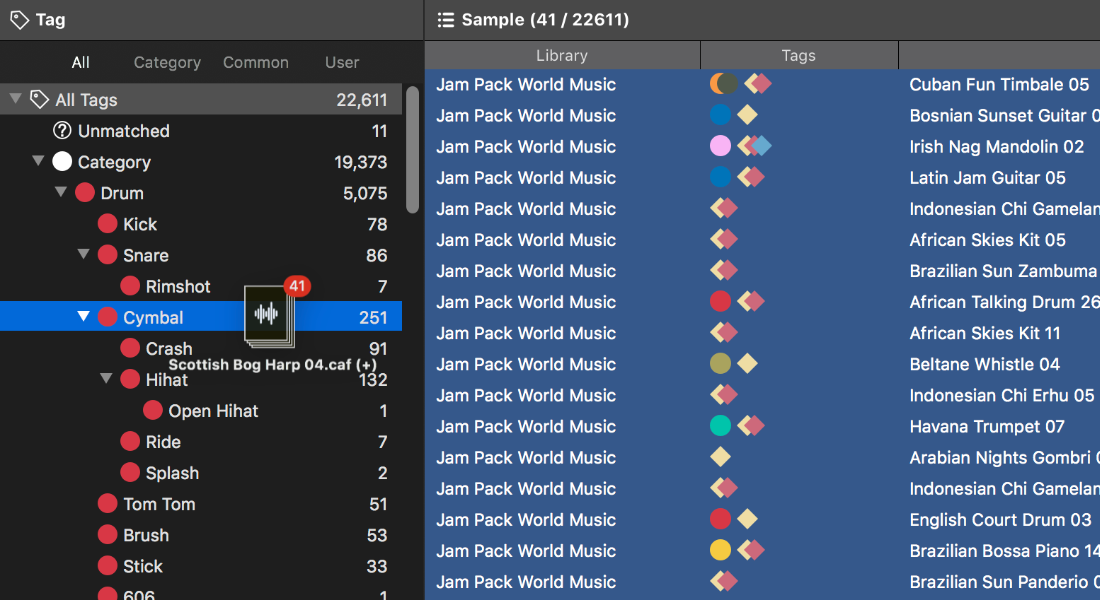
3. Manual Tag Matching
The automatic tag matching feature in Samplism allows you to quickly and conveniently classify audio samples into tags. But sometimes the matching results may not be accurate. With the manual tagging feature, you can classify samples more precisely.
4. User-Defined Tags
In addition to a rich set of built-in tags, Samplism allows you to create your own tags and group tags. With the user-defined tagging feature, you can categorize audio samples much more accurately.

5. Organize Audio Samples with Folders
Samplism provides folders and folder groups to help you organize audio samples better. Simply select audio samples in a library and drag and drop them into a folder. It is simple, quick and easy.

6. Advanced Sample Player
Samplism provides a simple, easy-to-use yet powerful sample player which allows you to play an entire audio file, the waveform selection, or transient regions.
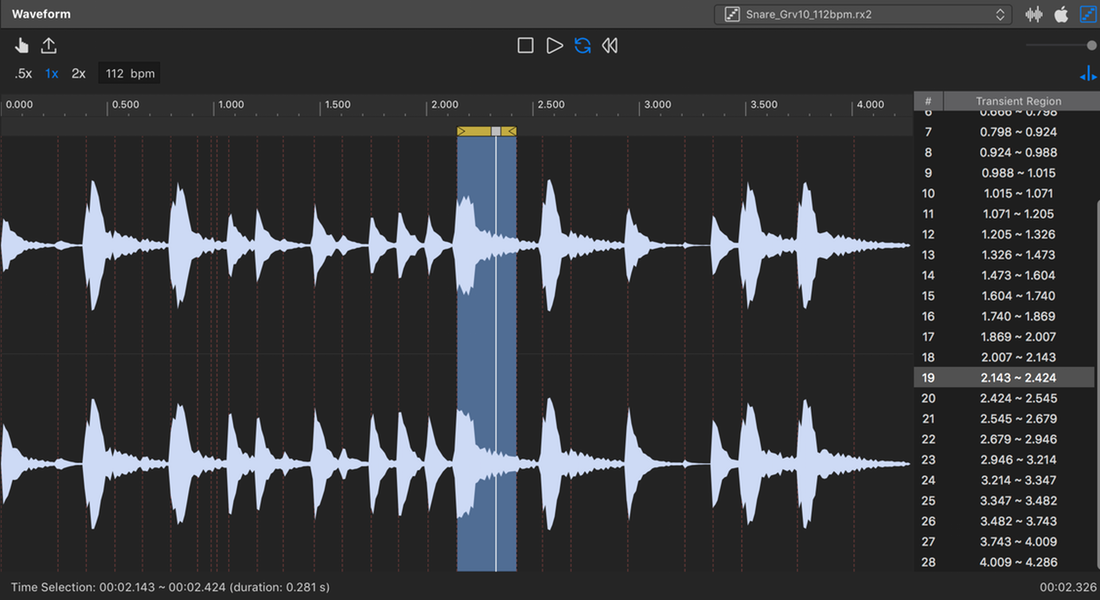
7. Files View
The Files View allows you to simply and quickly search for audio samples on a directory-basis.
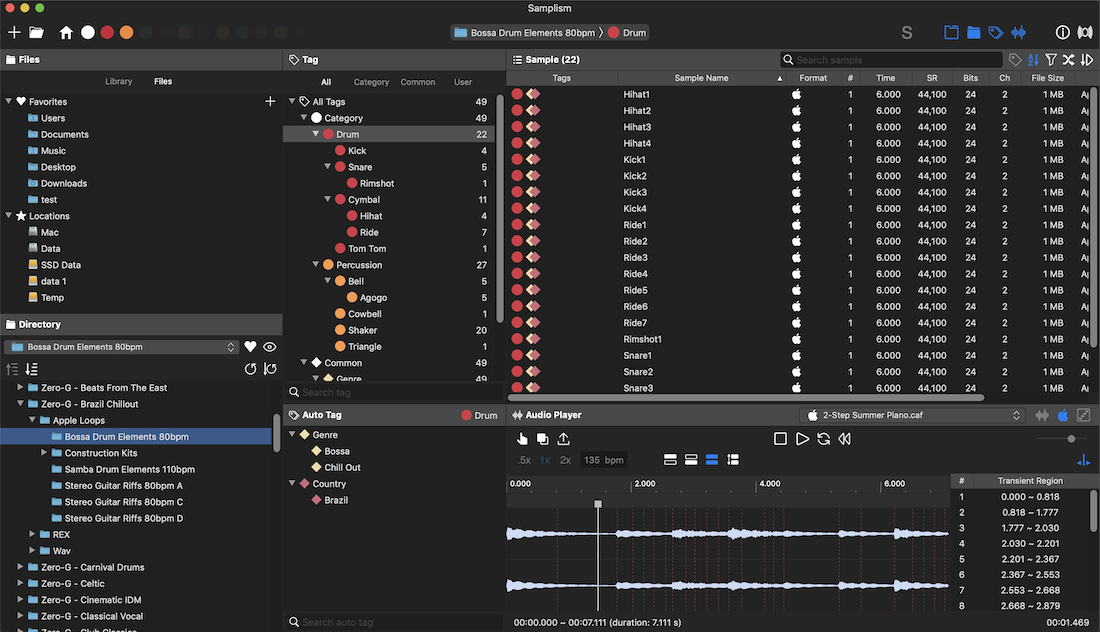
8. Simplism: the Samplism mini player
Simplism is designed to use with DAWs or other audio apps together on a single monitor screen. It takes up very little space on your screen and still provides most key features of Samplism such as navigating, previewing and searching for your audio samples.

9. Export Audio Samples
With Samplism, exporting as audio files has never been easier. Simply select audio samples, the waveform selection, or transient regions. Samplism provides various export options such as file type, sample rate and bit depth. With just a click, all selected samples are automatically converted as audio files, which can be used in other DAWs.
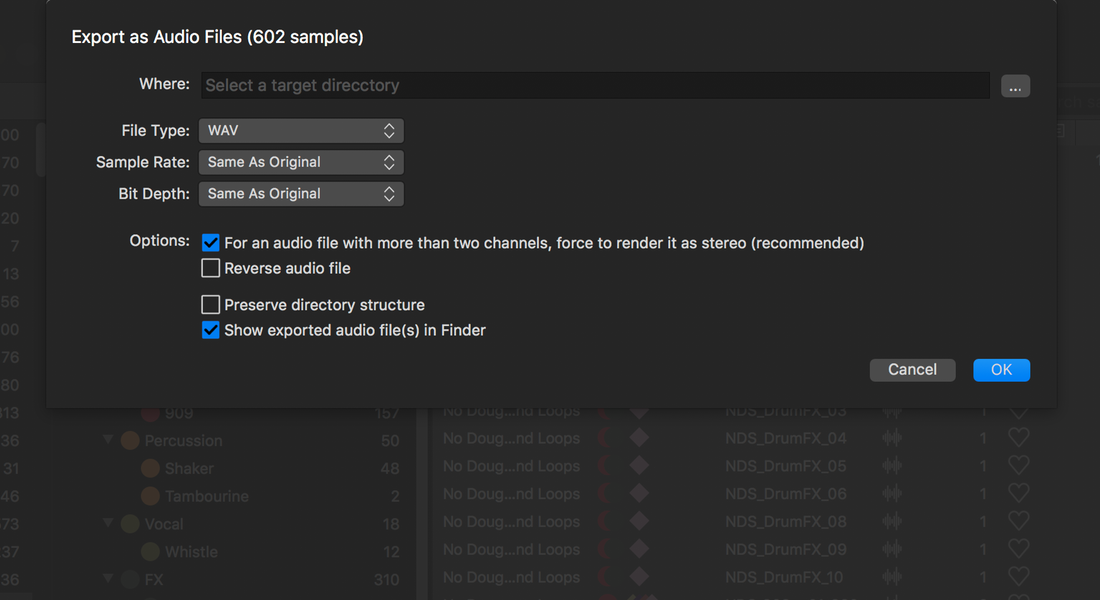
10. Import Third-Party Library (*)
Samplism provides a super easy way to import well-known third-party libraries installed on your Mac. Samplism automatically detects well-known third-party libraries, so you don’t need to worry about finding the directory location of third-party libraries. No setup is required. All you have to do is to simply import them with just one-click.
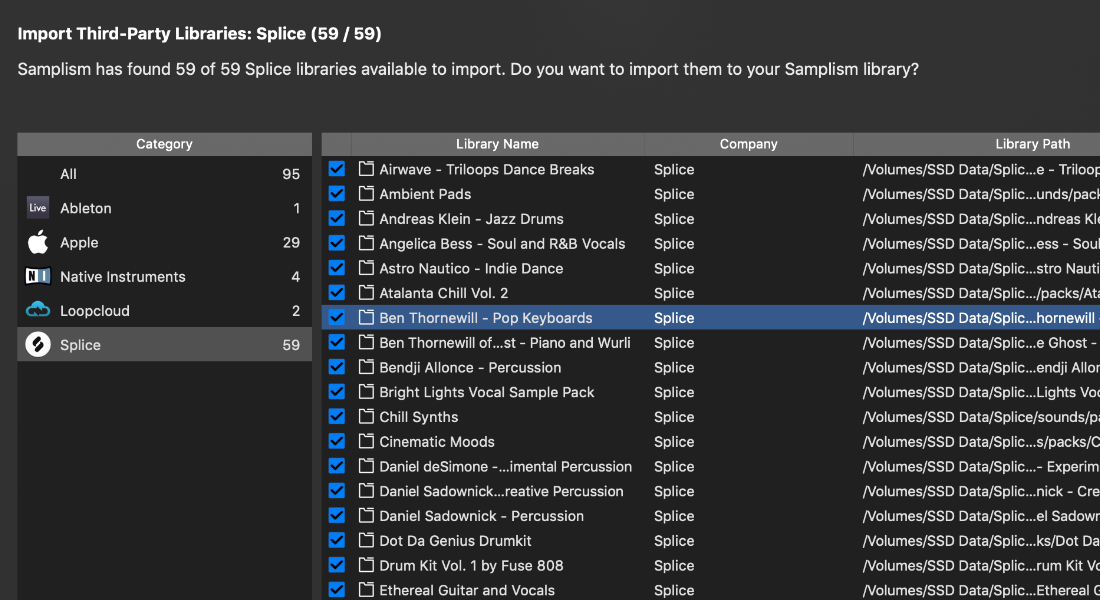
(* Logic Pro X, Ableton Live, Native Instruments, Loopcloud, Splice and AKAI MPC supported)
11. Working with DAWs
Simply drag and drop audio samples, the waveform selection or transient regions into DAWs. It just works. A powerful drag and drop feature in Samplism greatly improves workflow and increase creativity. Sampling has never been easier with Samplism.

12. Working with Audio Units
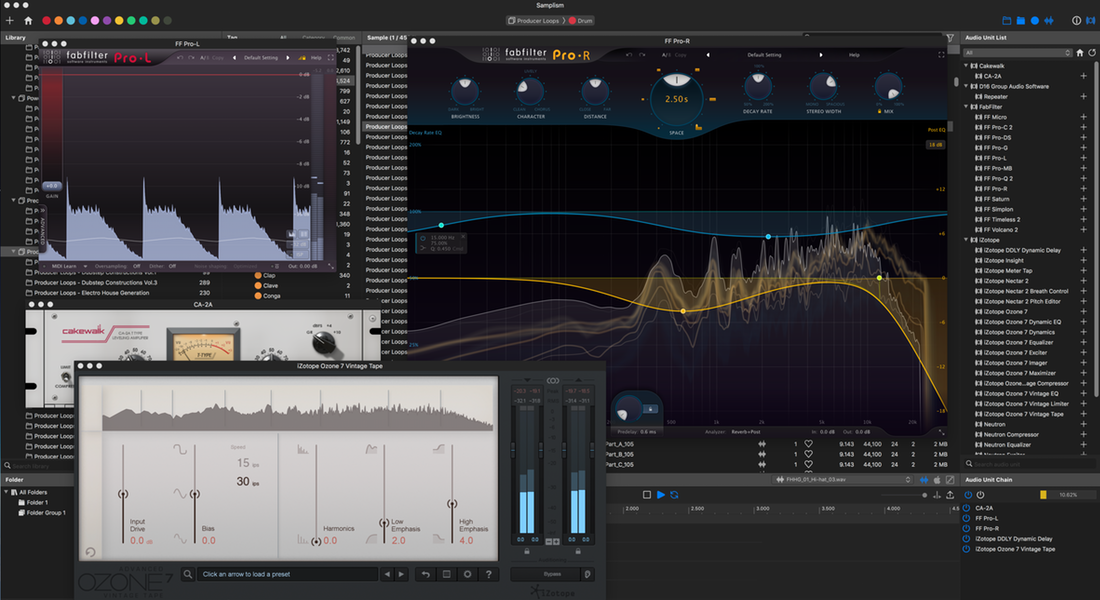
Samplism supports Audio Unit effects. By selecting the Audio Unit View, Samplism scans all Audio Unit effects installed on your Mac and shows them in the Audio Unit List. All you have to do is to preview audio samples with Audio Unit effects applied, tweak the plugin parameters and enjoy the sound.
13. Built for Mac
In order to provide the best performance and responsiveness, Samplism takes full advantage of the latest macOS technologies including Core Audio, Core Animation, and Grand Central Dispatch, and is fully optimized for 64-bit and multicore processors.
Minimum System Requirements
- macOS 10.13, or later (*Fully compatible with macOS Sonoma).
- Native support for Apple Silicon Macs.
- Requires 64-bit Audio Units plug-ins.
Release Notes
Samplism Release Notes
Samplism Lite Release Notes
 Audio Helper Project
gjust a suggestion. you should add a feature that the left and right arrows are used to fast forward or rewind a sound. Like, when you press right arrow, sound skips fordard until you releace it, then the sound continues playing normally from that point. I mean, sometimes there are long sound samples or other and it would be nice if we could skip or rewind easily to get to say, a sirtain point of the sample without having to listen to the entire sound. ThanksG
LikeLike
Thanks for your suggestion!
LikeLike
Hi guys,
Just an idea. Wouldn’t it be great if Samplism could have multiple windows open or tabs?
Cheers!
LikeLiked by 1 person
Why not?
Please look forward to future updates!
LikeLike
Hi, does the auto-Tag Function also work for User defined Tags? And is there a description anywhere where you can see and maybe edit how the auto-tagging works in detail?
LikeLiked by 1 person
Hi, Jake.
1. Does the auto-Tag Function also work for User defined Tags? => Yes.
2. And is there a description anywhere where you can see and maybe edit how the auto-tagging works in detail? => No.
LikeLike
Dear team,
Is this the best way to make feature suggests or ask for help?
Can I ask: is there an easy way to identify missing samples, for example if I have deleted or moved some samples from my hard drive?
LikeLiked by 1 person
Hi, tobypearce.
We prefer an e-mail to comment here but please do as you want.
Regarding your question, the current version of Samplism does not support that feature. But we will consider supporting it in the future updates.
Thank you!
LikeLike
hi, could you please be so kind and share a contact email..?
I have used the contact form a few days ago regarding some info.
thanks.!
LikeLiked by 1 person
Hi, Kelvin.
Really sorry for the late reply to your email that you sent us a few days ago.
We will reply to you today:)
LikeLike
Thanks! In that case it would be extremely useful to be able to select an entire label, like “Vengeance” and see files in there. (There are all in the same main folder on my computer.)
LikeLiked by 1 person
Thanks for your great suggestion!
We will continuously improve the Files View in the future updates.
Please look forward to!
LikeLike
Oh no!
I was so much looking forward to files in 1.6.
But it doesn’t link to the library! All the hard work I have done to tag files – these aren’t visible when browsing by files/directory.
Also, every time you select a folder it has to rescan the folder and every file rather than knowing that it’s already part of the library.
Please, please fix this!
LikeLiked by 1 person
Hi, tobypearce.
In such a case, try to do as follows.
1. Select a library in the Library View.
2. Right-click and select the [Show in Files View] menu.
When you select a directory in the Files View, Samplism basically scans all samples in the directory you selected and shows the found samples in the Sample List view.
But when you select the [Show in Files View] menu in the Library View, Samplism just shows all samples a library by subdirectories.
It may be confusing at first, but you will get used to the concept of the Files View soon.
If you have further questions, please let us know.
Thank you!
LikeLike
Is it possible to specify the search even more than just by two tags? Like maby with three Auto Tags at once?
LikeLiked by 1 person
*maybe
Second question: Where can I read the manual?
LikeLiked by 1 person
Hi, Jake.
Thanks for your questions.
1. The future updates of Samplism will supporting more than two auto tags. Please look forward to the future updates.
2. The online manual and video tutorials will be available later. We are working in them.
LikeLike
Hi guys,
Thanks again for Samplism, it’s extremely useful.
Just a quick user report here:
1) “Physically delete files on disk” doesn’t seem to work on folders in the library pane (works on the indexed individual audio files though).
2) It looks like any file which has an “audio type” extension gets indexed, regardless of its actual format. For example, I have some alias files with .wav extension inside some library folder and they’ll get indexed too, rather than getting resolved, which seems more practical imho.
Keep up the great work!
LikeLiked by 1 person
3) Samplism doesn’t fit my screen on my dual monitor system

4) In the “Rescan Library” dialog the text line is truncated under the Full Rescan, ending on the word “have”
Here’s the img:
LikeLiked by 1 person
Hi, 3xMusic.
Thanks for your suggestions and bug reports!
We will address those issues in the future updates.
LikeLike
안녕하세요. 홈페이지랑 유튭이랑 이것저것 봤을때 한국분 같아서 한글로 남깁니다.
정품으로 구매한 사운드 라이브러리 (.wav)들을 불러오는과정에 경고메시지가 뜹니다.
“Library “new” already contains samples in a directory: /Volumes/ 하드디스크 이름 /new/2018_buy_library_2/ ”
이런현상을 겪고있는데 원인을 알 수 있을까요?
가능하다면 한국인이 맞으시면, 한국어로 답글 부탁드립니다..ㅋㅋㅋ
Hi. I have a question!
I’m using the simplism demo version.
I’m having problems trying to add a new library.
When I add my library, I get this message.
Library “new” already contains samples in a directory: / Volumes / xlgamessound3 library / new / 2018_buy_library_2 /
I need your help, to give me a solution. :)..
LikeLiked by 1 person
전훈님, 안녕하세요.
먼저 Samplism을 구매해주셔서 너무 감사드립니다!
위 에러 메시지의 원인은 아주 간단해요. 기존에 추가한 라이브러리 중 하나가 이미 “new” 디렉토리를 포함하고 있기 때문이에요.
제 추측으로는 “xlgamessound3 library” 라이브러리를 이미 추가하셨을 것 같아요.
Samplism에서는 기본적으로 중복된 샘플이 없도록 구현이 되어 있으니 참고하시면 좋을 것 같습니다.
혹시 다른 문의사항이 있으면 audiohelperproject@gmail.com 으로 메일 부탁드릴게요.
(홈페이지 내 comment 보다는 메일로 보내시는게 더 빨리 답변을 받으실 수 있어요)
감사합니다!
LikeLike
When is the update coming?
LikeLiked by 1 person
Samplism v1.6 will be available this month!
Please wait for just a few weeks!
LikeLiked by 1 person
Hi,
Thanks for a great tool, love it.
Have you ever thought about supporting Finder’s tags? Would it be hard to implement?
Thanks,
Andrey
LikeLiked by 1 person
Hi,
Thanks for a great tool, love it.
Have you ever thought about supporting Finder’s tags? Would it be hard to implement?
Thanks,
Andrey
LikeLiked by 1 person
Hi, Andrey.
We have a plan to support macOS tags later.
Please look forward to the future updates.
Thank you!!!
LikeLike
AaaeHi, this app is amazing. i’m loving it so far. only… one question. I’m constantly adding new sounds and music to a sound library i have that i imported manually. However, when i add these new content to the library in finder, the new content doesn’t show up in samplism. How can i refresh libraries so that the new sounds appear in samplism? This app is great. Thanks for the great work. Igna
LikeLiked by 1 person
Hi, Igna. To refresh newly added or delete samples in a library, try to do as follows:
1. Select a library in the Library List view, right-click it, and select the [Rescan Library] menu (key shortcut: ctrl+R).
2. Choose a “Full Rescan” option, and press an [OK] button.
3. Wait until done. That’s all!
If you have further questions, please contact us via our official e-mail, audiohelperproject@gmail.com.
Thank you again!
LikeLike
Hi there! Any idea when you’re gonna roll out the update with MIDI compatibillity & files tab feature?
LikeLiked by 1 person
Hi, Romeo.
Files tab will be available in Samplism v1.6, which is expected in November 2018.
MIDI capability will be available later.
Thanks!
LikeLike
Still really enjoying Samplism. One further suggestion – I know you’re working on the others.
I understand the logic of not having a file structure within samplism. However, knowing which folder a sample is in WOULD assist in manual tagging. For example, I have a sample pack with a combination of:
a) loops
b) construction packs, which are also loops.
In Samplism I put a) in “loops” and b) in “stems”.
Samplism doesn’t distinguish between these (in this case at least), so I need to separate out the loops. If I could see which folder the samples came from I would be able to achieve this quickly.
The most helpful way you could implement this would be to have a new sort column of “parent folder”.
Is this possible please?
LikeLike
“I understand the logic of not having a file structure within samplism.”
Hi there. I really don’t understand this and I find it’s one fo the main things that turns me this great app. I still use it every day and rate it highly but the no-sub folder thing is a real bummer and counter-intuitive for an app that is supposed HELP me to find samples more quickly and efficiently. Is there a benefit to having the app run this way?
LikeLike
Please, make a Windows version of this, it looks amazing…
LikeLiked by 1 person
Thanks for your comment! Unfortunately, we don’t have a plan to make a Windows version of Samplism.
LikeLiked by 1 person
The Samplism screen doesn’t fit my 15in screen. Part of it hangs off the screen with no way to minimize it to fit. Is this going to be a fix for this?
LikeLike
Guys I have a little problem… I had my Samplism library on a external drive but now I have upgraded to a bigger external drive and copied my Samplism folder and samples over. How do I fix my db so that it finds my samples again? Can I just use sqlite and edit the database for this?
LikeLiked by 1 person
Hi, James.
In the current version of Samplism, there’s no way to fix a library accessible where its directory path has changed.
Although Samplism internally uses sqlite3 to manage the Samplism database, simply manipulating the Samplism database file would not working.
In this case, you need to create new libraries from directories in your bigger external drive.
In the future updates, we will improve how to migrate Samplism Library in an easier and more intuitive way.
Thanks for your comments!
LikeLike